
You haven't signed in yet, you can have a better experience after signing in
*Please complete the payment within {{receiveCouponInfo.expire_at}}Previous use*
You haven't signed in yet, you can have a better experience after signing in



Activity Rules
1、Activity time:{{ info.groupon.start_at }} ~ {{ info.groupon.end_at }}。
1、Activity time:cease when sold out。
2、Validity period of the Group Buying:{{ info.groupon.expire_days * 24 }} hours。
3、Number of Group Buying:{{ info.groupon.need_count }}x。
Please Pay Attention
1、Teamwork process: Join/initiate a Group Buying and make a successful payment - Within the validity period, the number of team members meets the activity requirements - Group Buying succeeded!
2、If the number of participants cannot be met within the valid period, the group will fail, and the paid amount will be refunded in the original way.
3、The number of people required and the time of the event may vary among different products. Please pay attention to the rules of the event.
Intelligent HTML, CSS, JavaScript editor, HTML5 editor+CSS3 editor+JS editor
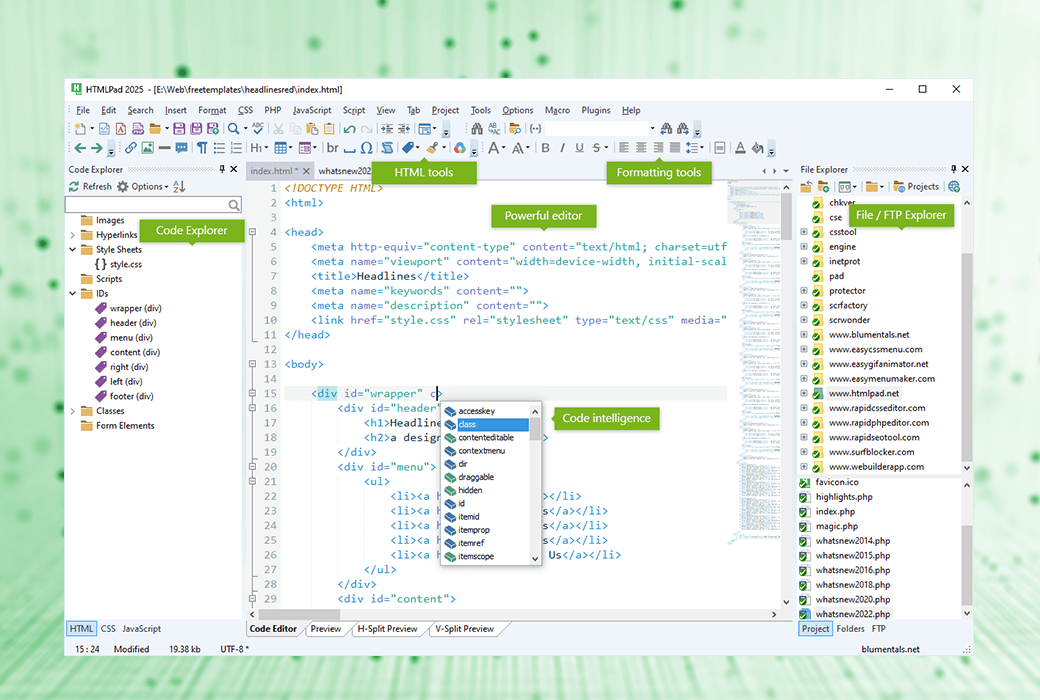
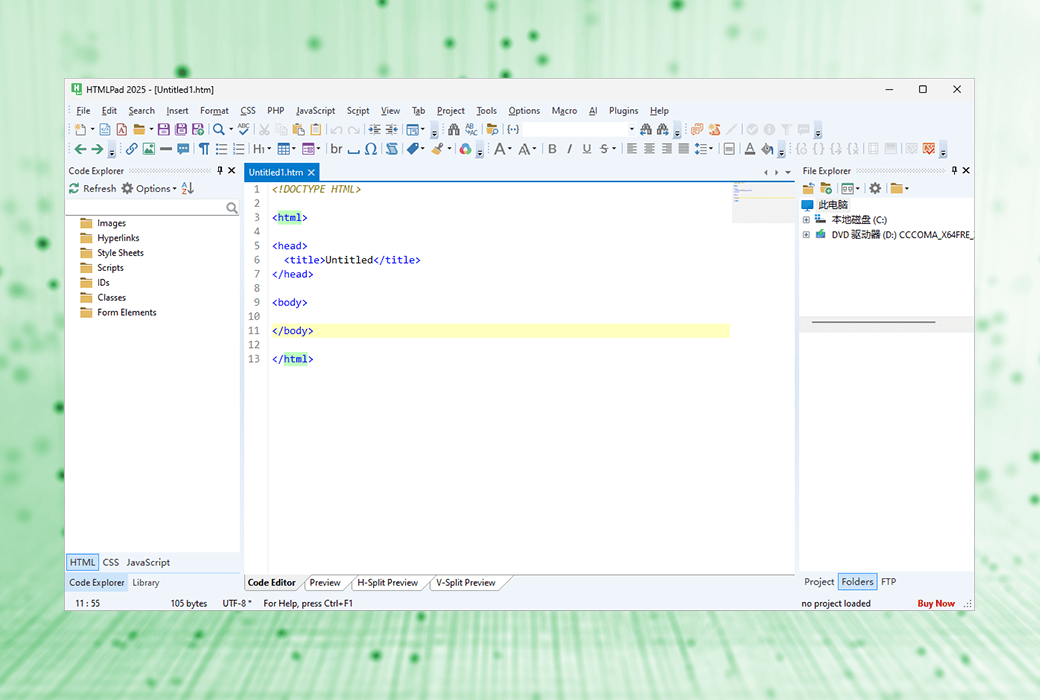
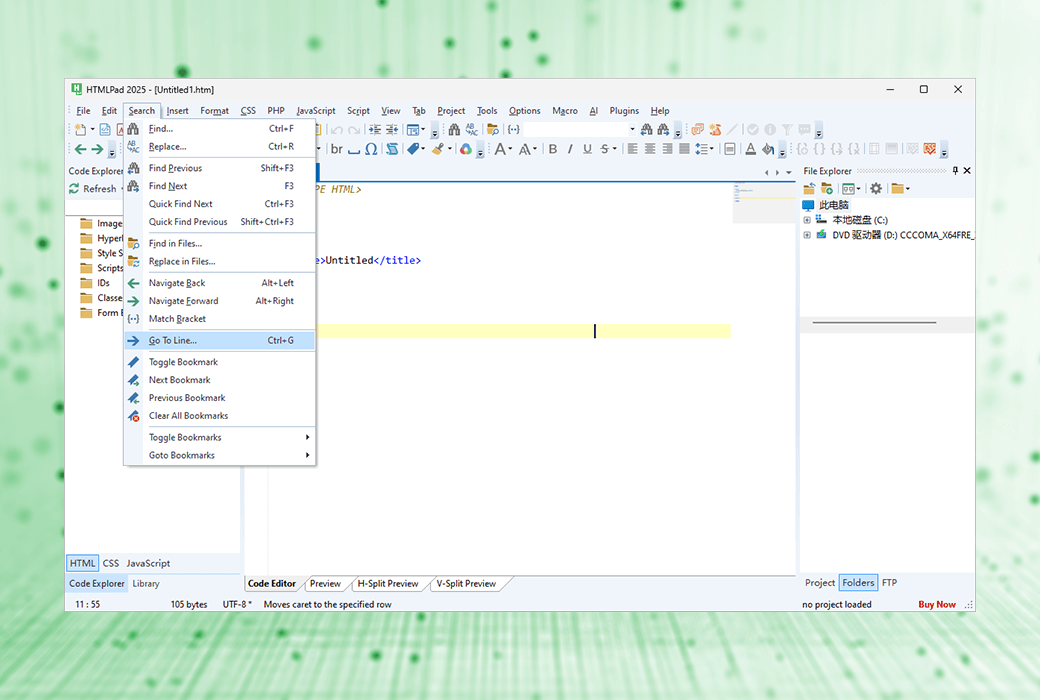
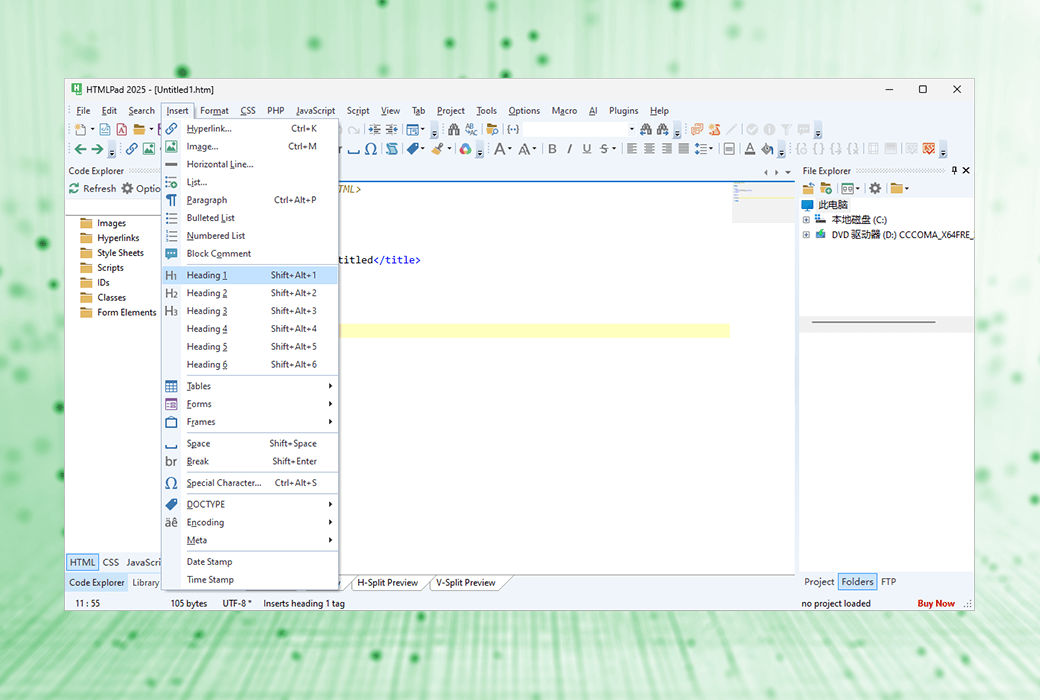
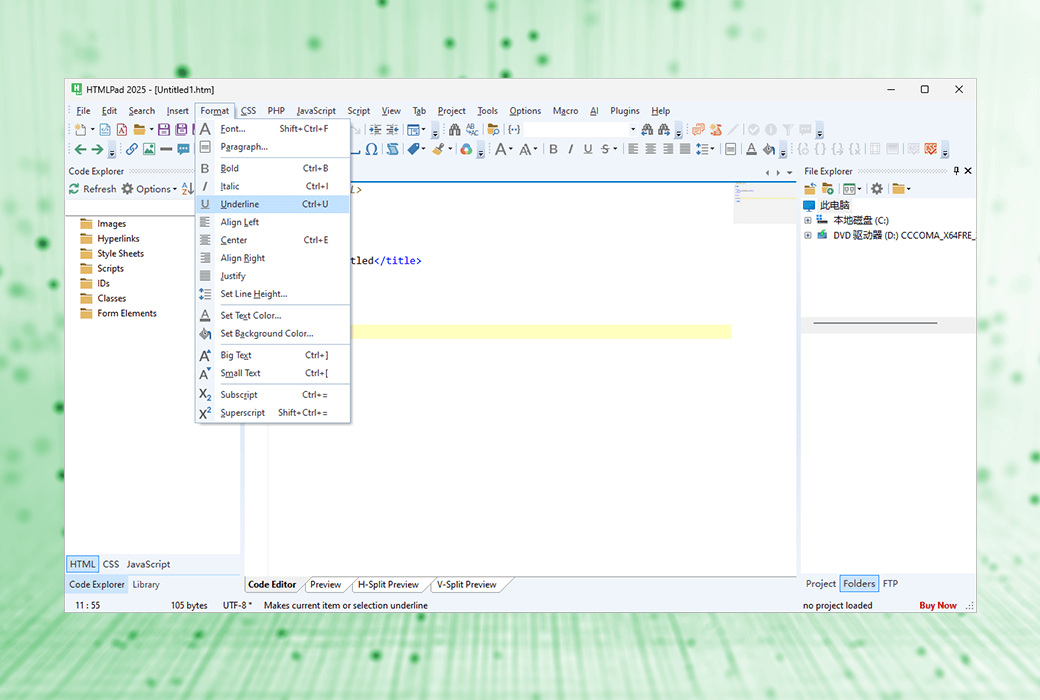
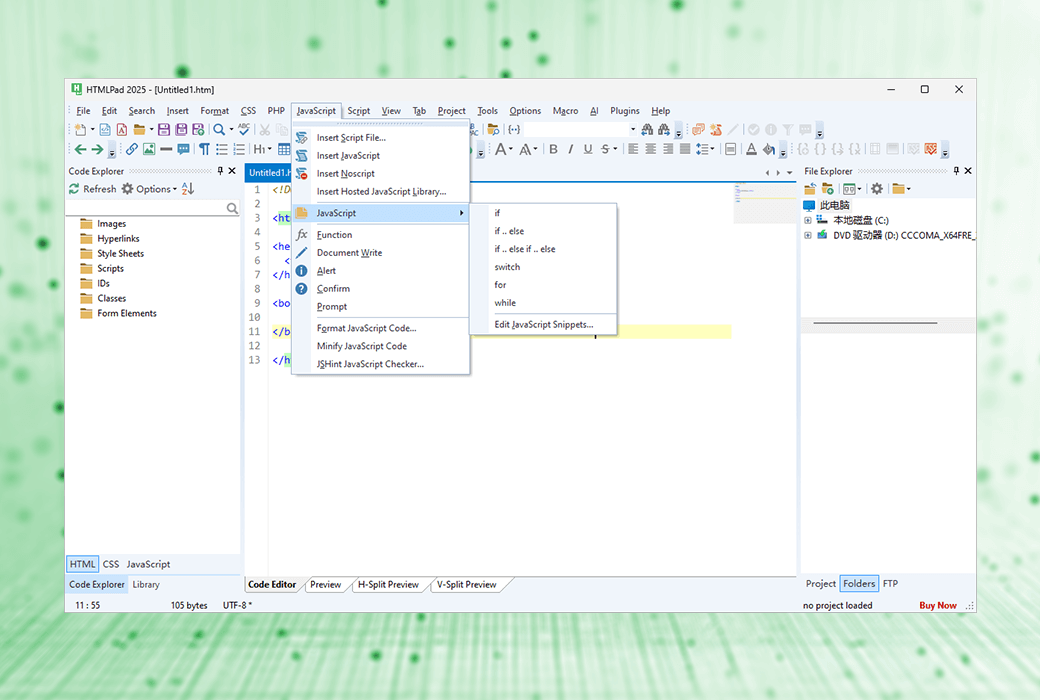
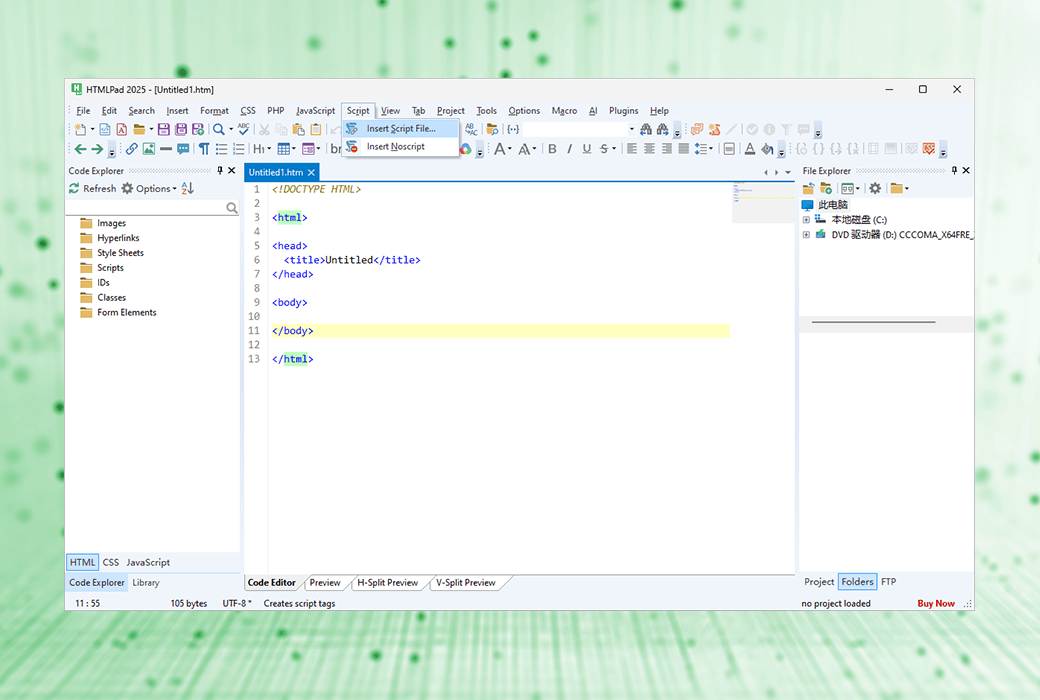
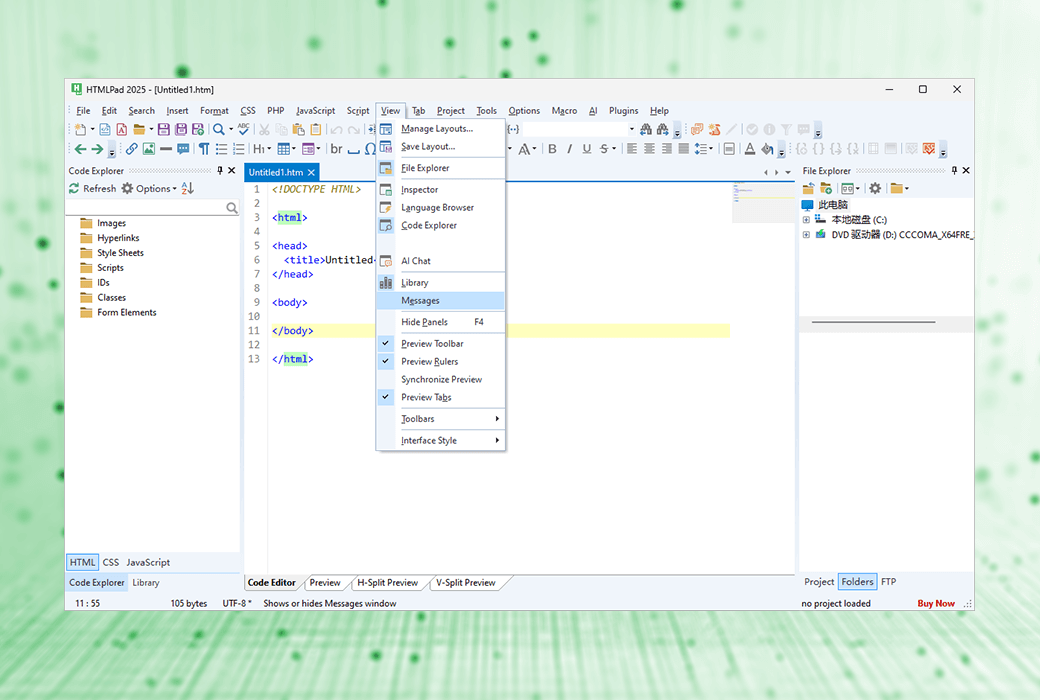
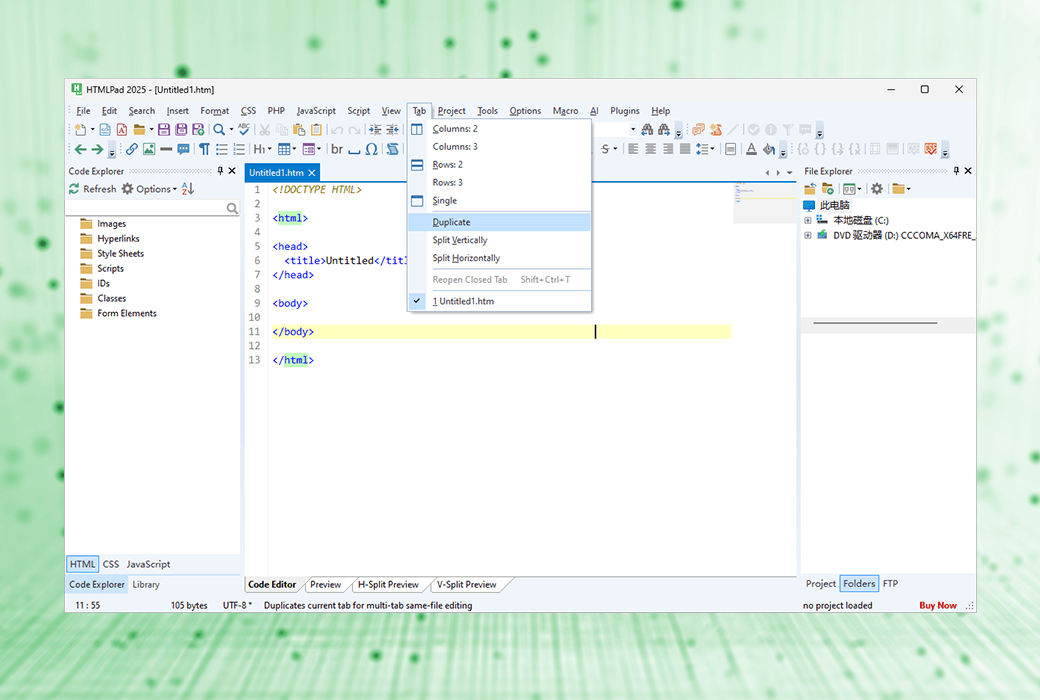
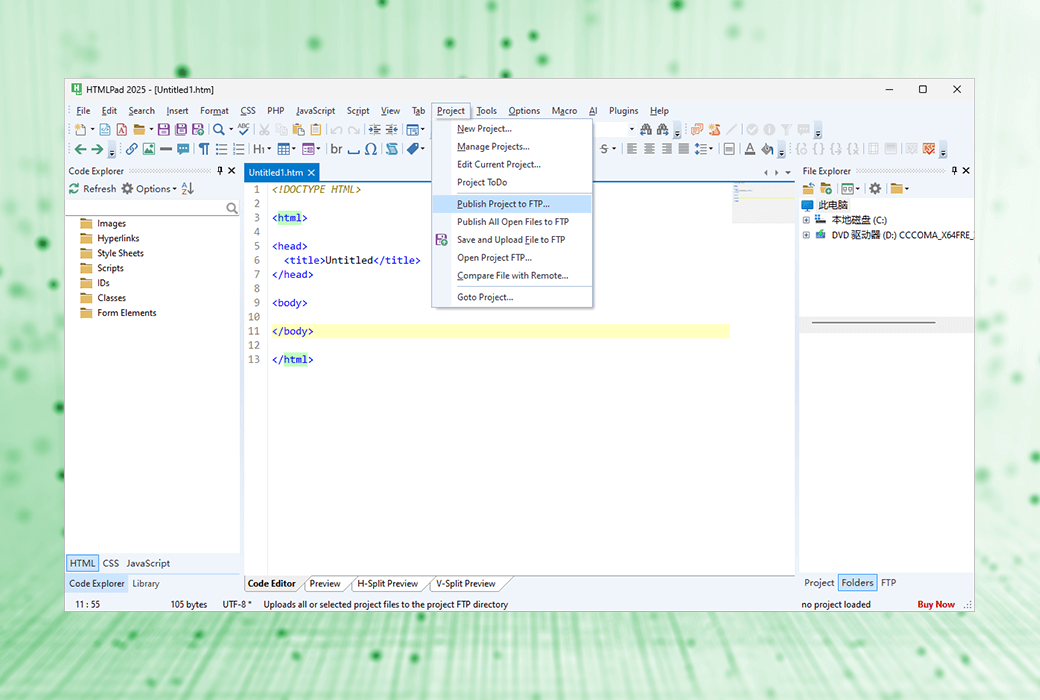
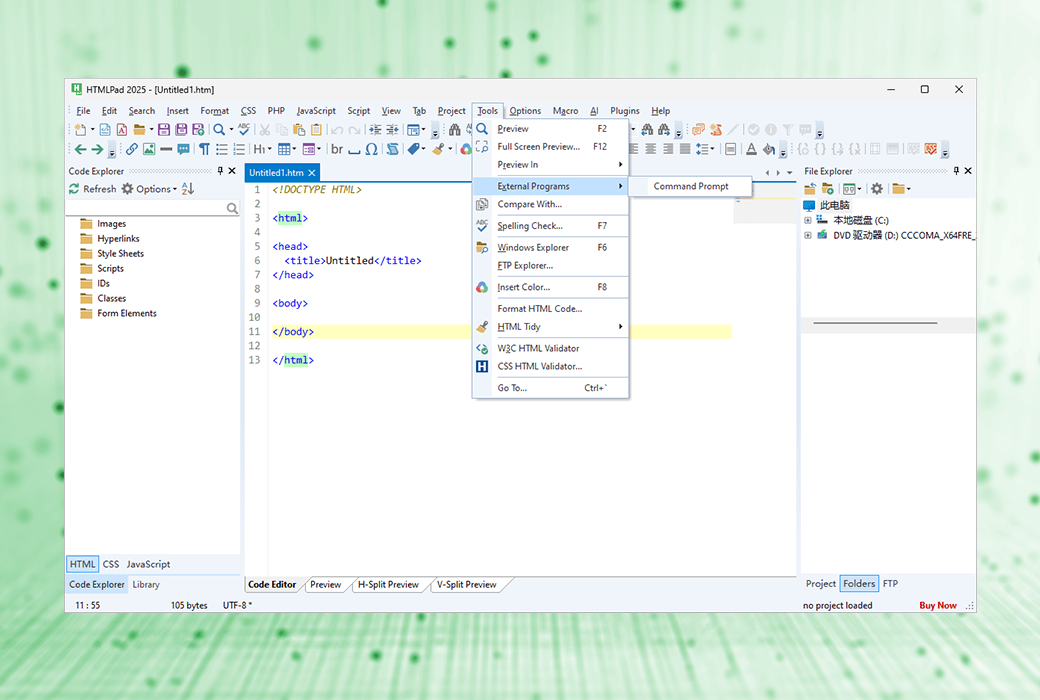
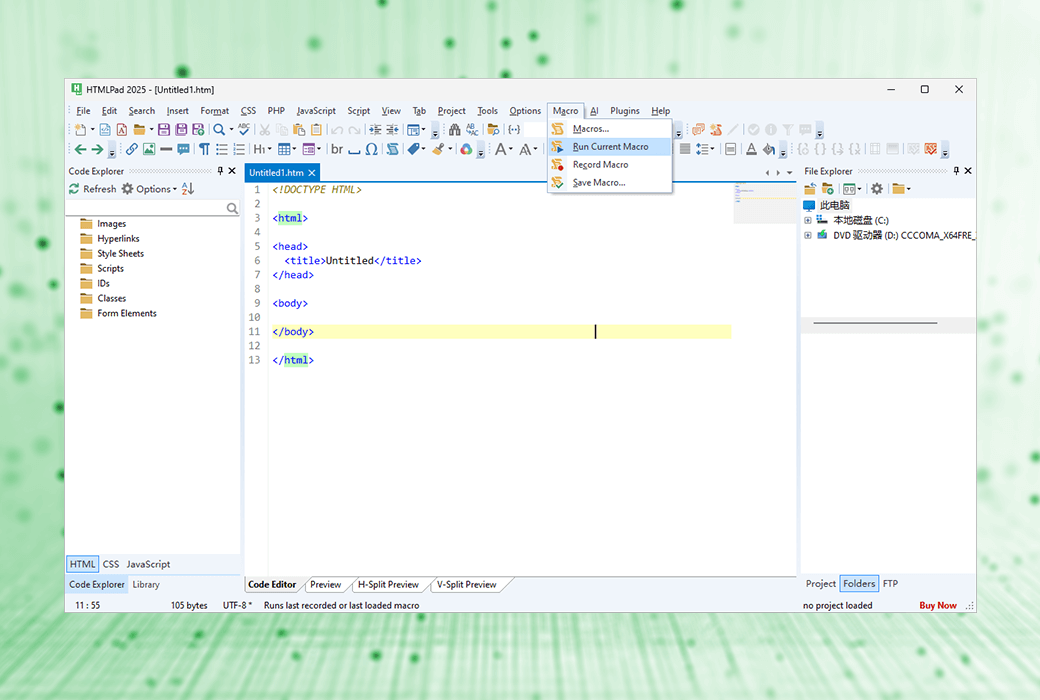
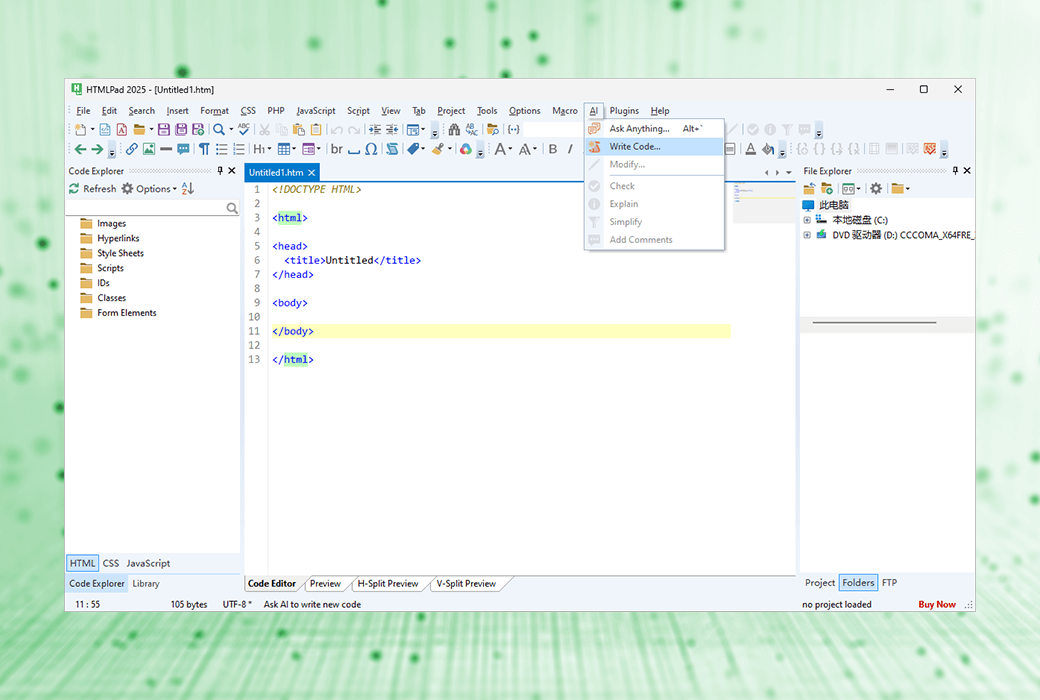
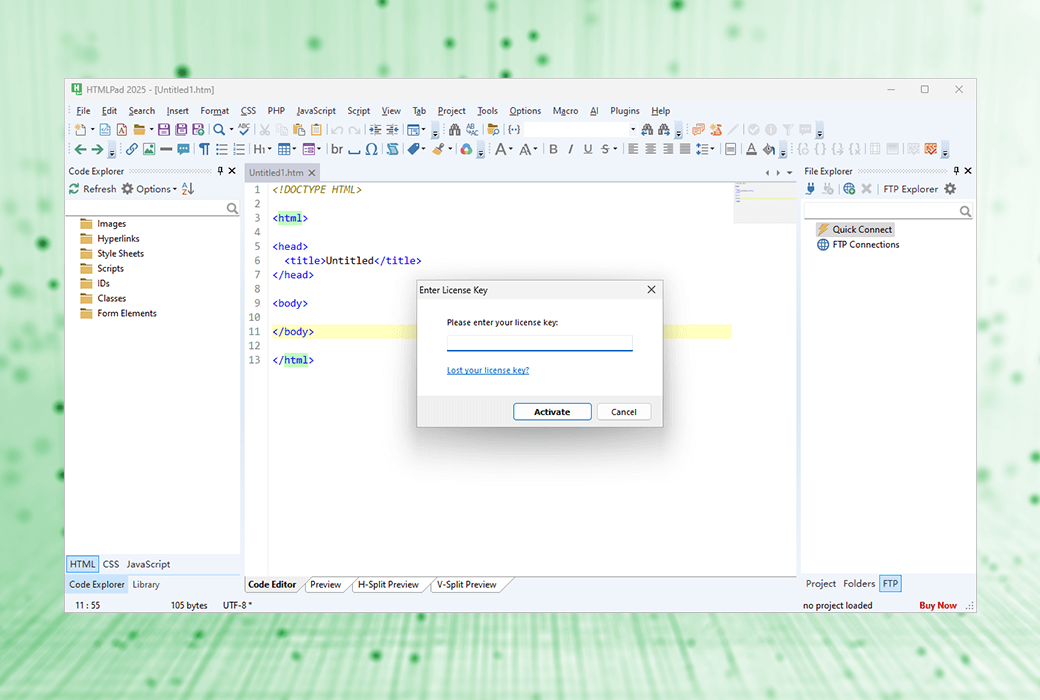
HTMLPad is an intelligent integrated HTML, CSS, and JavaScript code editor that will help you code faster and improve work efficiency, now available through an integrated AI assistant. HTMLPad contains powerful features and tools that enable you to create, edit, validate, reuse, navigate, and deploy HTML, CSS, and JavaScript code quickly and easily.
The loading speed is much faster than any other editor or IDE with similar functionality
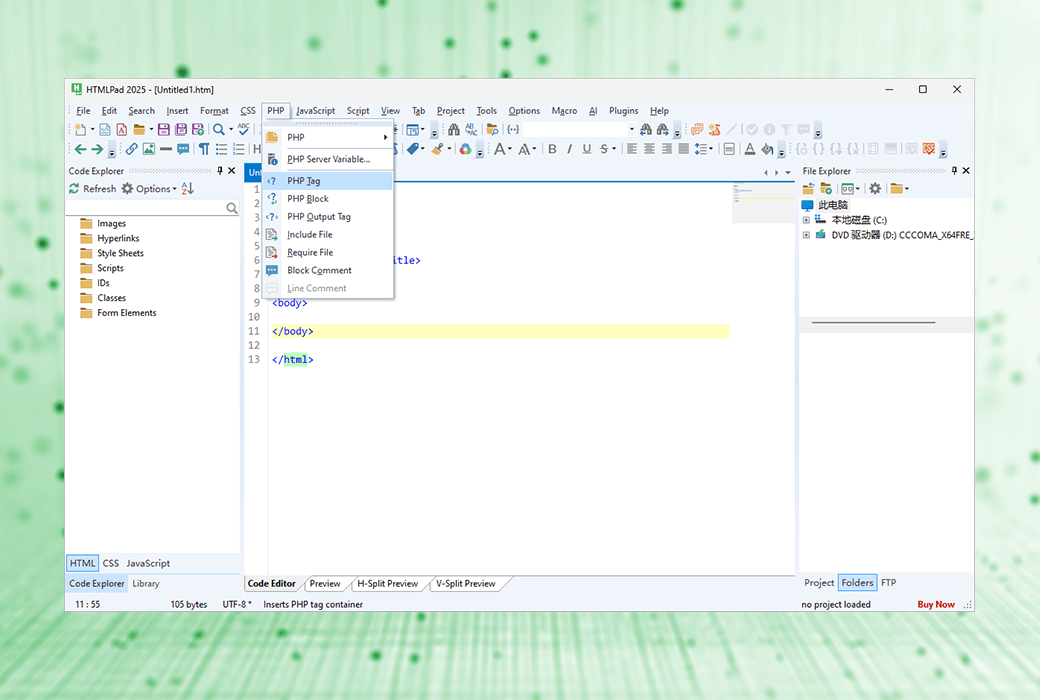
Support HTML, CSS, JavaScript, PHP, XML, ASP, Perl, etc
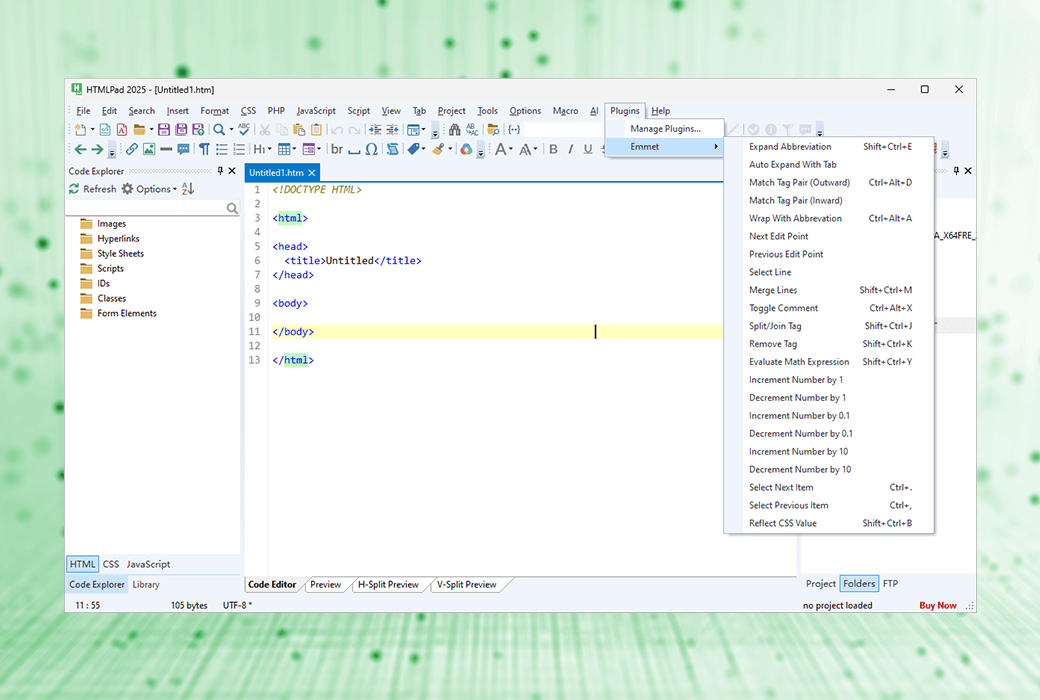
A large number of intelligent code completion, navigation, and suggestion functions
Code snippet library and code templates with assignable shortcuts
Automatically generate, modify, and optimize code to solve coding challenges*
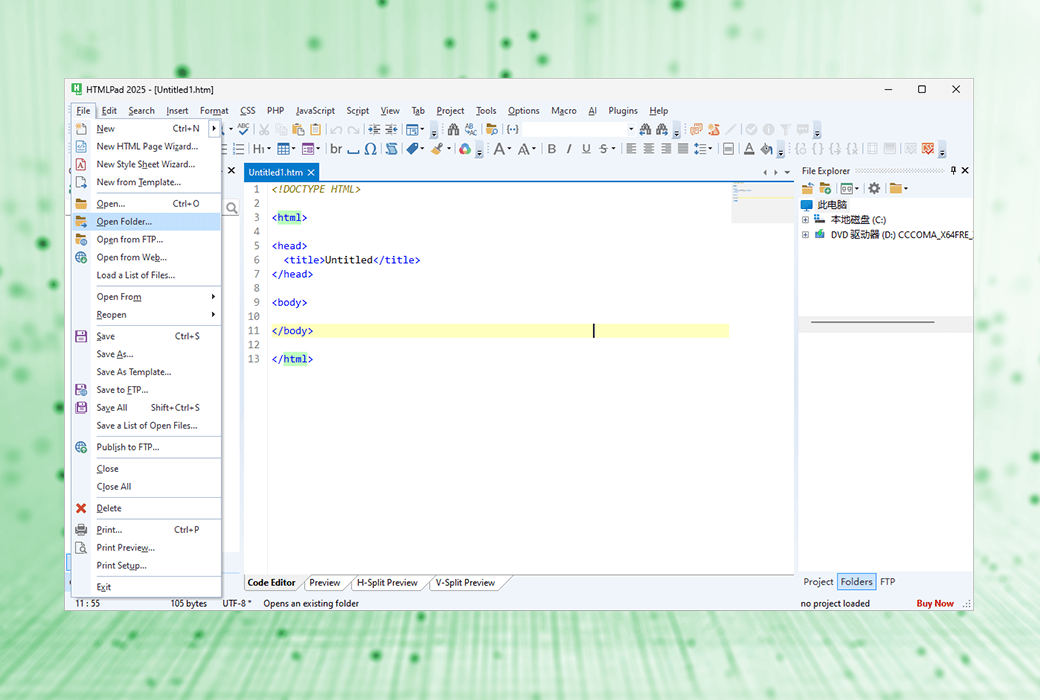
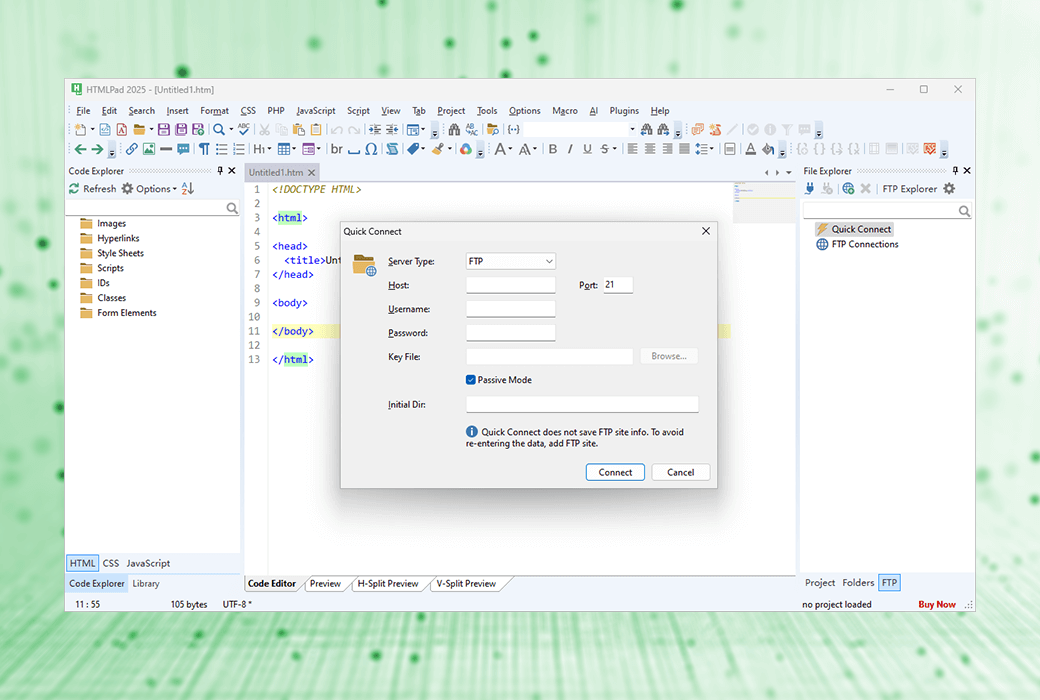
Edit or publish local development copy updates directly on the web server with just one click
Built in multi browser preview, split screen mode, screen size testing, developer tools
Goto provides any content, quick search, detailed search, file search, regular expressions, detailed results, etc
The encoding function is synchronized with the latest HTML5 and CSS3 standards and updates
Tag matching, HTML Tidy, HTML/CSS checker, HTML/CSS assistant, CSS compatibility watch, etc
JavaScript editor with auto completion function, language tools, etc
Spell checker, W3 HTML and CSS validator, CSS checker, JSLint JavaScript checker
The Best HTML Editor for Learners
HTMLPad is very easy to learn and use. Its working principle is similar to a simple text editor, but it provides many useful features such as HTML and CSS wizards, as well as real-time code snippets, browser previews, and more. HTMLPad can actually help you learn web coding and reduce errors.
Powerful AI capabilities*
AI driven assistants can help you generate, modify, and optimize code automatically, as well as directly in a comfortable code editor.
HTML5 Editor
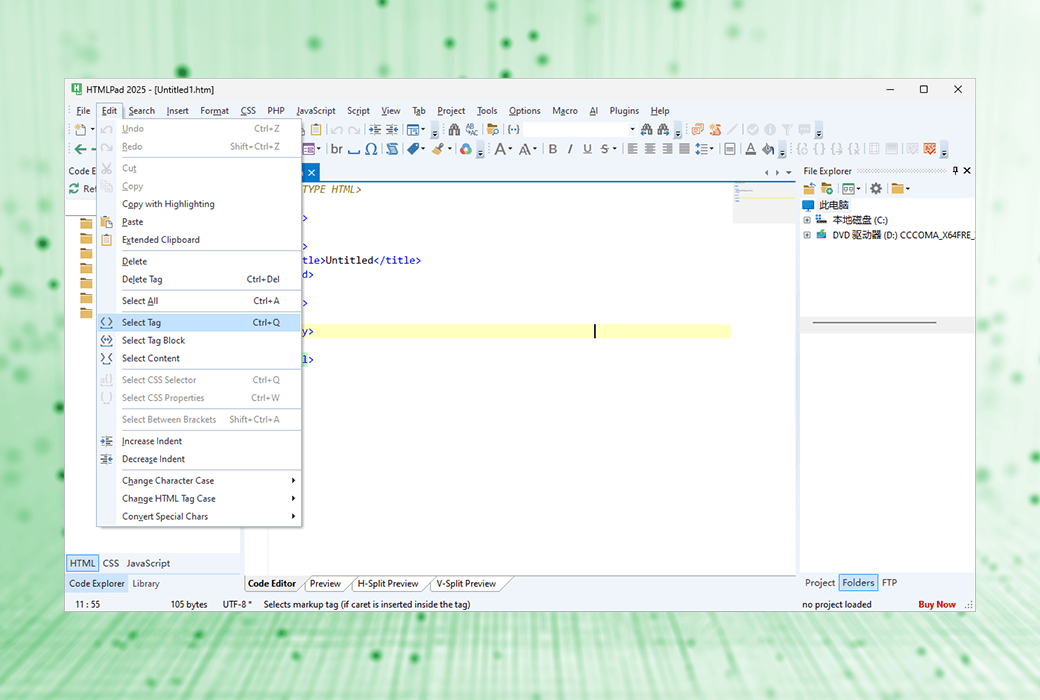
Unlike visual HTML editing tools, text-based editors allow you to work at a professional level and generate high-quality code. The HTMLPad HTML5 editor goes further by providing you with tools for managing, testing, and validating your code.
Why choose HTMLPad?
Unlike other web development editors, you don't have to wait for it to load.
HTMLPad is fast, clean, and lightweight. It is very powerful, but not filled with useless buttons or panels.
The HTMLPad features have been carefully designed with speed and productivity in mind.
Just a few clicks to upload/update your online website files.
Grammar checkers, validators, debuggers, beautifiers, CSS prefixes, etc.
Official Website:https://www.htmlpad.net/
Download Center:https://htmlpad.apsgo.cn
Delivery Time: processed manually online
Operating Platform: Windows
Interface Language: supports English interface display, with multiple languages available.
Update Instructions: supports free upgrades and updates for 6 months after purchase.
Trial Before Purchase: free trial available before purchase.
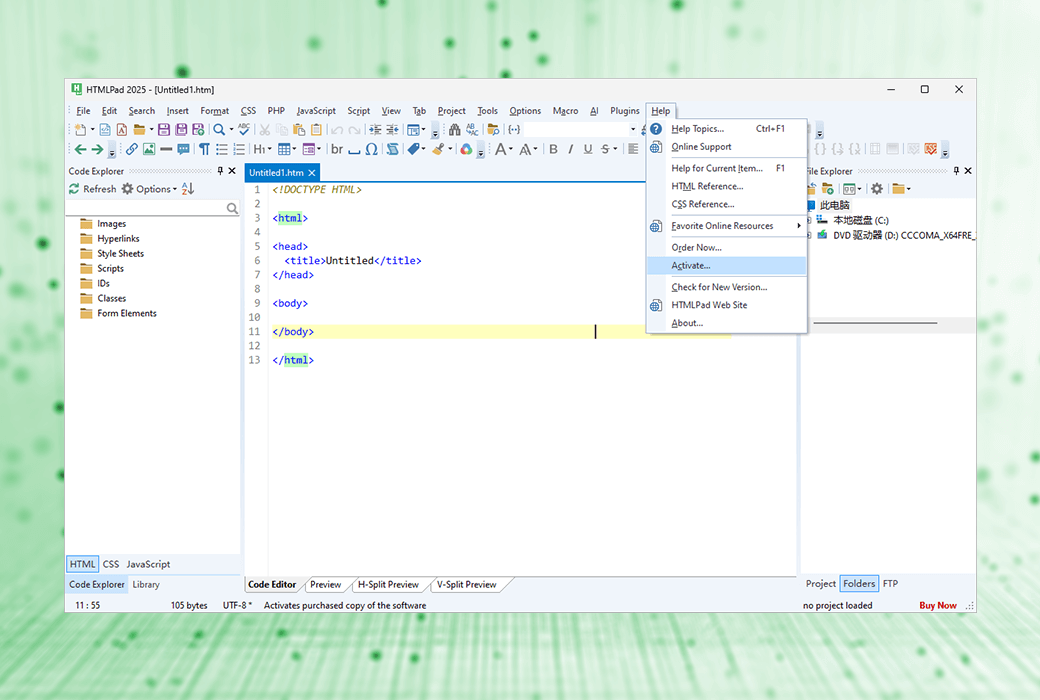
How to Receive the Product: after purchase, activation information will be sent to the email used for ordering, and the corresponding product activation code can be viewed in the personal center, under "My Orders".
Number of Devices: commercial version allows you to install the application on work computers, home computers, and one laptop. personal version: allows you to install the application on home computers and one laptop
Changing Computers: uninstall on the old computer and activate on the new computer.
Activation Guide: to be added.
Special Instructions: to be added.
References:https://www.htmlpad.net/support.php

Any question

To preview PHP files, you need to install a web server on your computer and configure it to support PHP files. For more information on installing a PHP-enabled web server, please refer to the PHP and Web Server manual.
The free Apache web server from apache.org is recommended. If you are a beginner, you can consider the XAMPP package, which not only installs and configures the Apache web server but also PHP, MySQL, and other software required for web development.
Step 1 - What is your document root address?
Determine the document root folder of your local web server. The document root folder stores the web pages accessed through your web server URL. For more information, please refer to your web server manual.
If you are using Apache or the XAMPP package, locate the httpd.conf file, open it with a text editor, and find the line starting with DocumentRoot. There you will find the document root folder.
Step 2 - What is your web server address?
Please identify your local server URL, usually http://localhost/
Step 3 - Ensure your web server is working properly
Confirm that your web server can indeed support PHP files. To do this, save a PHP file to your web document root directory and try to open it through your browser. For example, if your web document root is c:\htdocs, save the file as c:\htdocs\index.php and try to open it through the URL http://localhost/index.php
If your web server is functioning properly, you can now configure internal preview.
Step 4 – Configure internal preview
Now you must tell the editor software how to use your web server to display PHP file previews
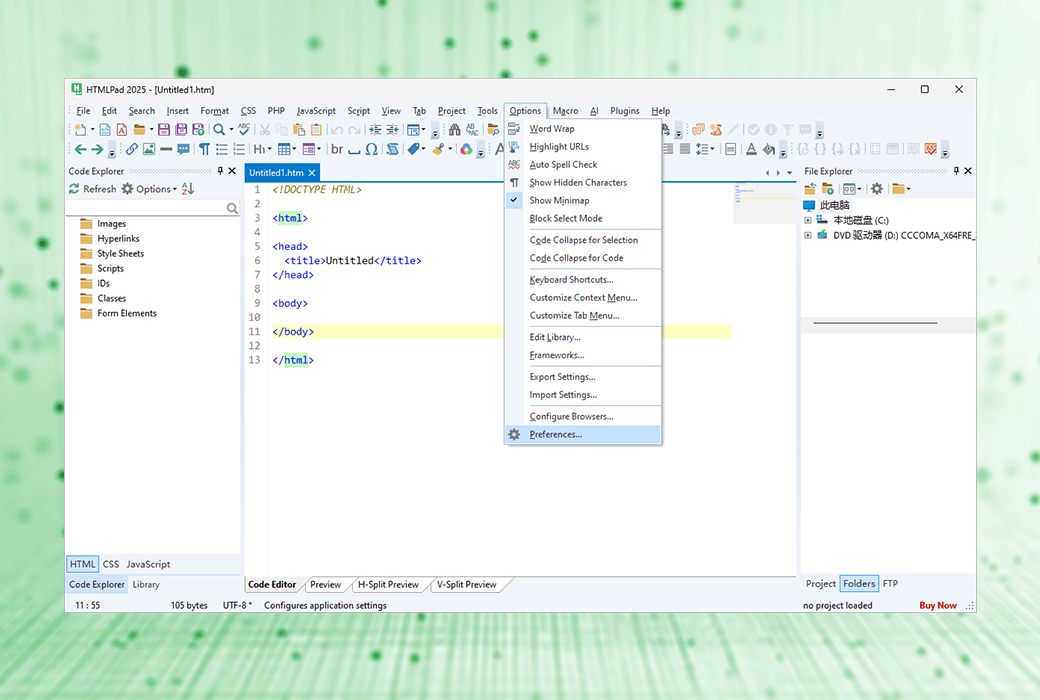
1. In the options menu, click Preferences;
2. In the Preferences window, click Preview Folder;